
The first time you log in, we ask three quick questions and then offer a one-minute tour. Each takes seconds, you can skip either, and then you go straight on to your course.
Getting in
If you chose a password at checkout, you're already signed in when the confirmation page opens: press Start learning. After that, log in from the login page with your email and password, or with Google if that's how you signed up. Forgotten your password?
Three quick questions
Before anything else opens for the first time, you see three questions, one at a time:
What brings you to OBA? Change career, get better at your job, start or grow a business, or learning for you.
Which subjects interest you? Pick as many as you like.
How much time can you give it? Casual (2 hours a week), steady (4 hours) or serious (6 hours or more).

Skip for now is a perfectly good answer. We won't ask again, and you carry straight on to wherever you were heading.
What your answers are used for
Your subjects decide the course we suggest on your dashboard. Your time sets your weekly goal: 2 days a week for casual, 3 for steady and 5 for serious, or 3 if you skip.
Your first answer is saved as your learning goal. You can change it, and your weekly target, any time in Account settings on the Profile tab.
The one-minute tour
The first time you reach your dashboard or a course's home page, we offer a quick tour. Show me around highlights each part in turn: your next lesson, My courses, the Career Centre, Certificates, Notifications and your account menu. Not now closes it, and we won't offer it again unasked.
The first time you open a lesson, a shorter tour shows you round the lesson player, including the course contents and the OBA Tutor.
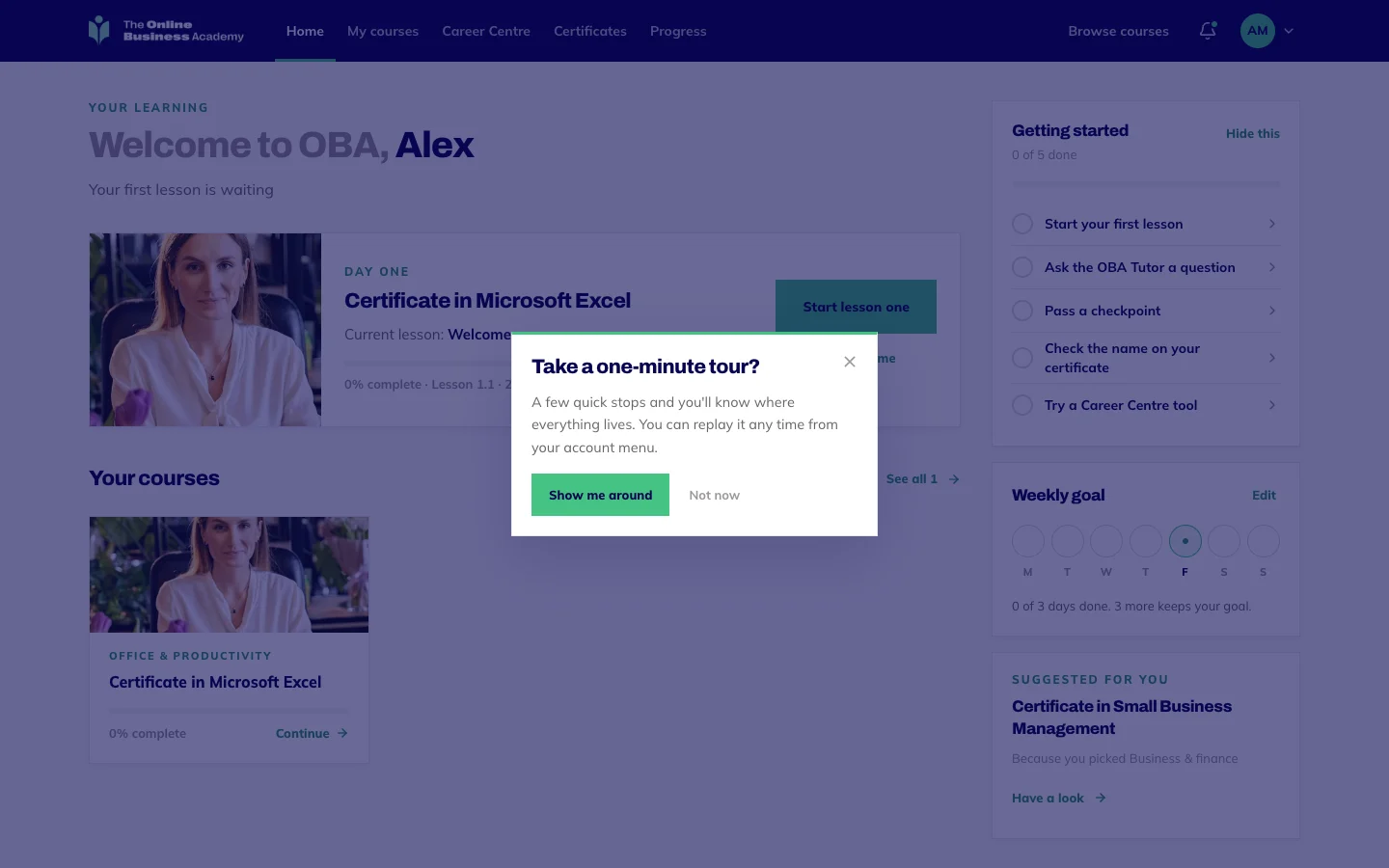
Want either tour again? Open the menu under your initials at the top right and choose Take the tour again.
Your getting started checklist
Your dashboard also shows a Getting started card (3): start your first lesson, ask the OBA Tutor a question, pass a checkpoint, check the name on your certificate, and try a Career Centre tool. Each one ticks itself off when you do it.
The certificate name ticks when you save your profile in Account settings, so check the spelling first.
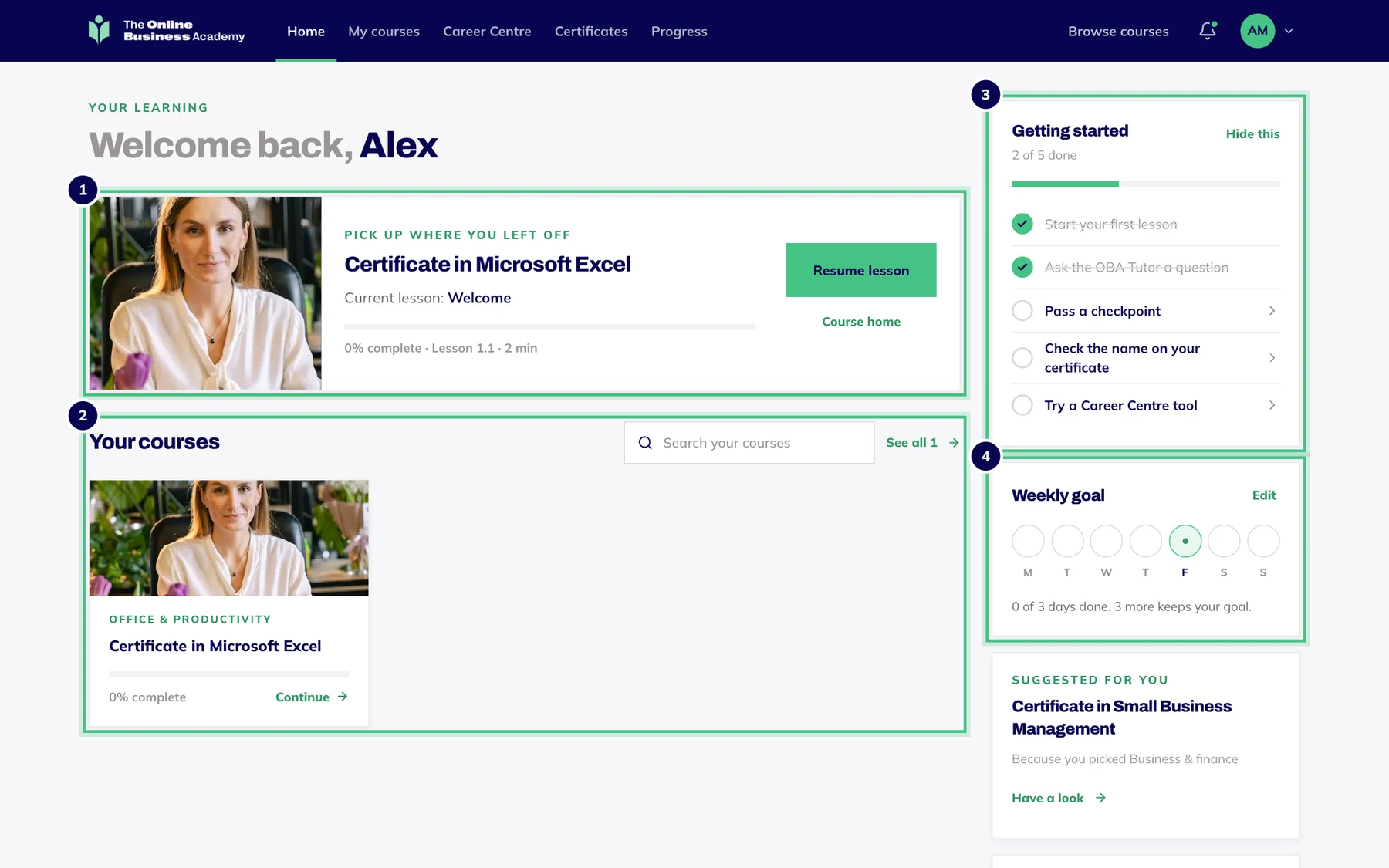
- Number 1: Pick up where you left off: one tap back into your lesson.
- Number 2: Your courses.
- Number 3: Getting started: five first steps that tick themselves off.
- Number 4: Your weekly goal.
Done with it? Hide this puts the card away for good.