
Your dashboard is home base: it puts your next lesson one tap away, lists your courses and tracks your weekly goal. Everything else is in the bar along the top or the menu under your initials.
Your dashboard at a glance
Pick up where you left off (1): the course you're on, the lesson you reached and a button straight back in. Before you've started, it says Day one and offers Start lesson one.
Your courses (2): everything you own and how far through each one you are, with a search box for when the list grows.
Getting started (3): five first steps that tick themselves off as you do them. Hide this puts the card away for good.
Weekly goal (4): the days you've learned this week against your target. A day counts when you finish a lesson or take a checkpoint or assessment. Edit takes you to Account settings to change the target.
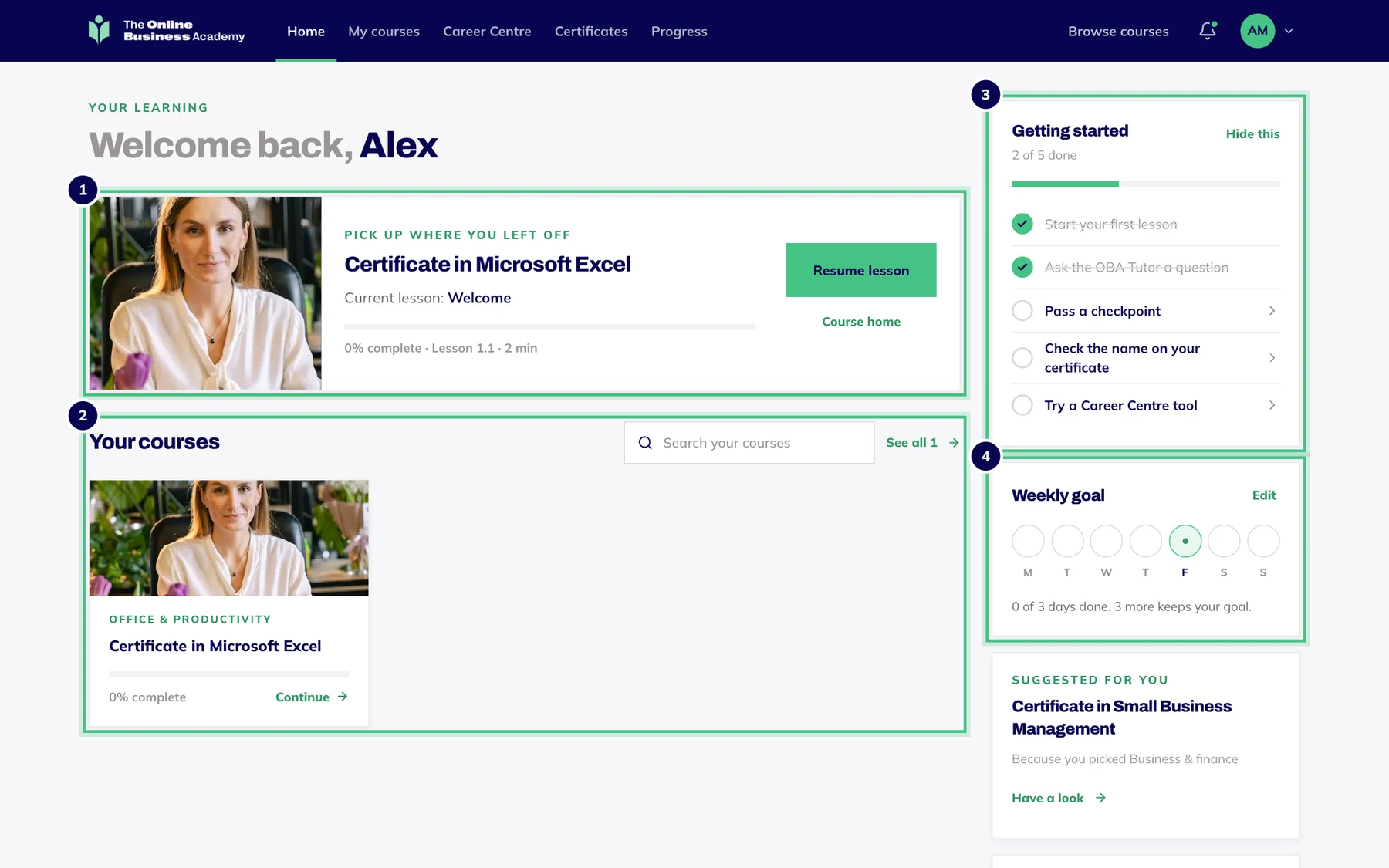
- Number 1: Pick up where you left off: one tap back into your lesson.
- Number 2: Your courses.
- Number 3: Getting started: five first steps that tick themselves off.
- Number 4: Your weekly goal.
Further down you may also see your streak, a course suggested from the subjects you picked at your first login, and your current course's certificate rule.
The bar along the top
Home brings you back to your dashboard.
My courses lists every course you own. Open one to reach its home page.
Career Centre holds Resume review, Resume builder and Interview practice, free with any course.
Certificates shows the ones you've earned and what it takes to earn the rest.
Progress has your totals, a weekly chart and quick reviews of lessons you've finished.
The bell opens your notifications, such as a new certificate or news about a course you own.
On a phone, Home, My courses, Career Centre, Certificates and Progress move into the menu under your initials.
The menu under your initials
Account settings (1): your name, the name on your certificates, your password and your weekly target.
Email preferences (2): choose which emails you get from us.
Purchases and receipts (3): your orders, with a receipt for each.
Take the tour again (4): the one-minute tour, from the beginning.
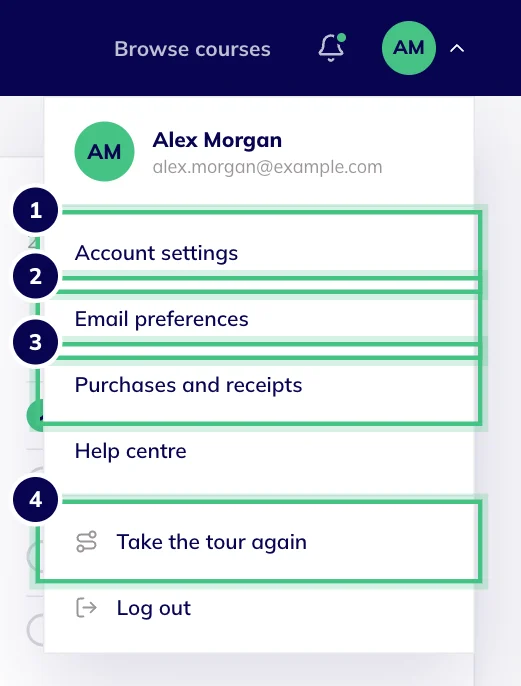
- Number 1: Account settings: your name, email, password and more.
- Number 2: Email preferences.
- Number 3: Purchases, with your receipts.
- Number 4: Take the tour again any time.
Each course's home page
Open a course from My courses, or press Course home on your dashboard.
How far through the course you are (1), and a Start or Continue button (2) that always takes you to your next lesson.
Every module and lesson (3), with a Video badge on video lessons.
What it takes to earn your certificate (4).
Stuck on something? (5) Get help opens an email to us, and a real person replies.
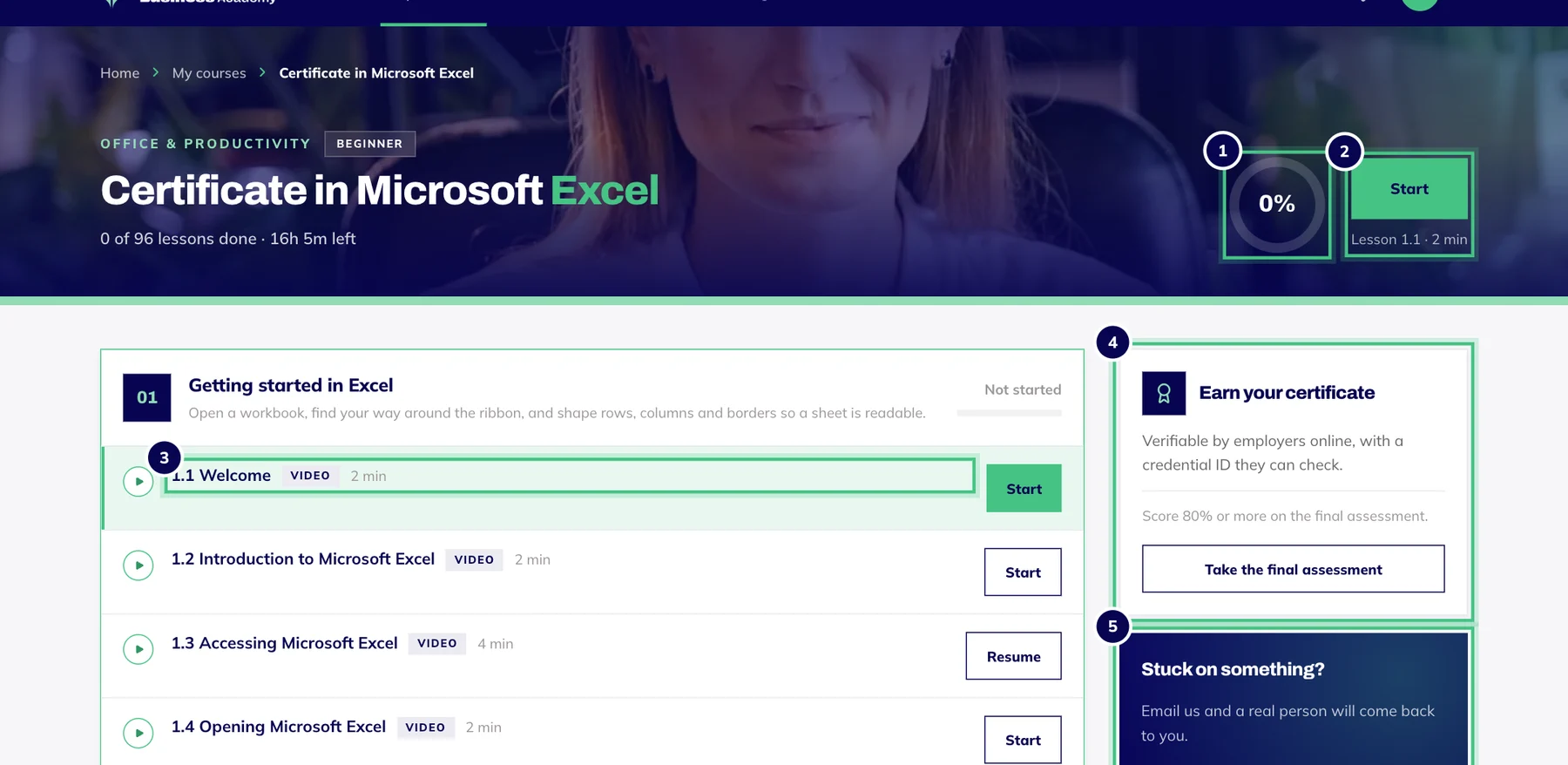
- Number 1: How far through the course you are.
- Number 2: Start or continue: always takes you to your next lesson.
- Number 3: Modules and lessons. A video badge marks a video lesson.
- Number 4: What it takes to earn your certificate, and the button for the final assessment.
- Number 5: Stuck? This gets you to a real person.