
The lesson player puts the course contents on the left, the lesson in the middle and the OBA Tutor on the right. Work through the lesson one step at a time and press Continue to move on.
Finding your way around
Course contents (1): every module, lesson and checkpoint, with a tick on everything you've finished. Tap a lesson to go straight to it, or Course overview at the bottom for your course home.
The lesson (2): one step at a time, whether that's a video, some reading or a question.
The OBA Tutor (3): ask it about the lesson you're on. It already knows which one that is.
Your place (4): the lesson name, the step you are on and a bar that fills as you go. Your XP is at the top right.
Continue (5): moves you to the next step. On a question it reads Check until you've answered.
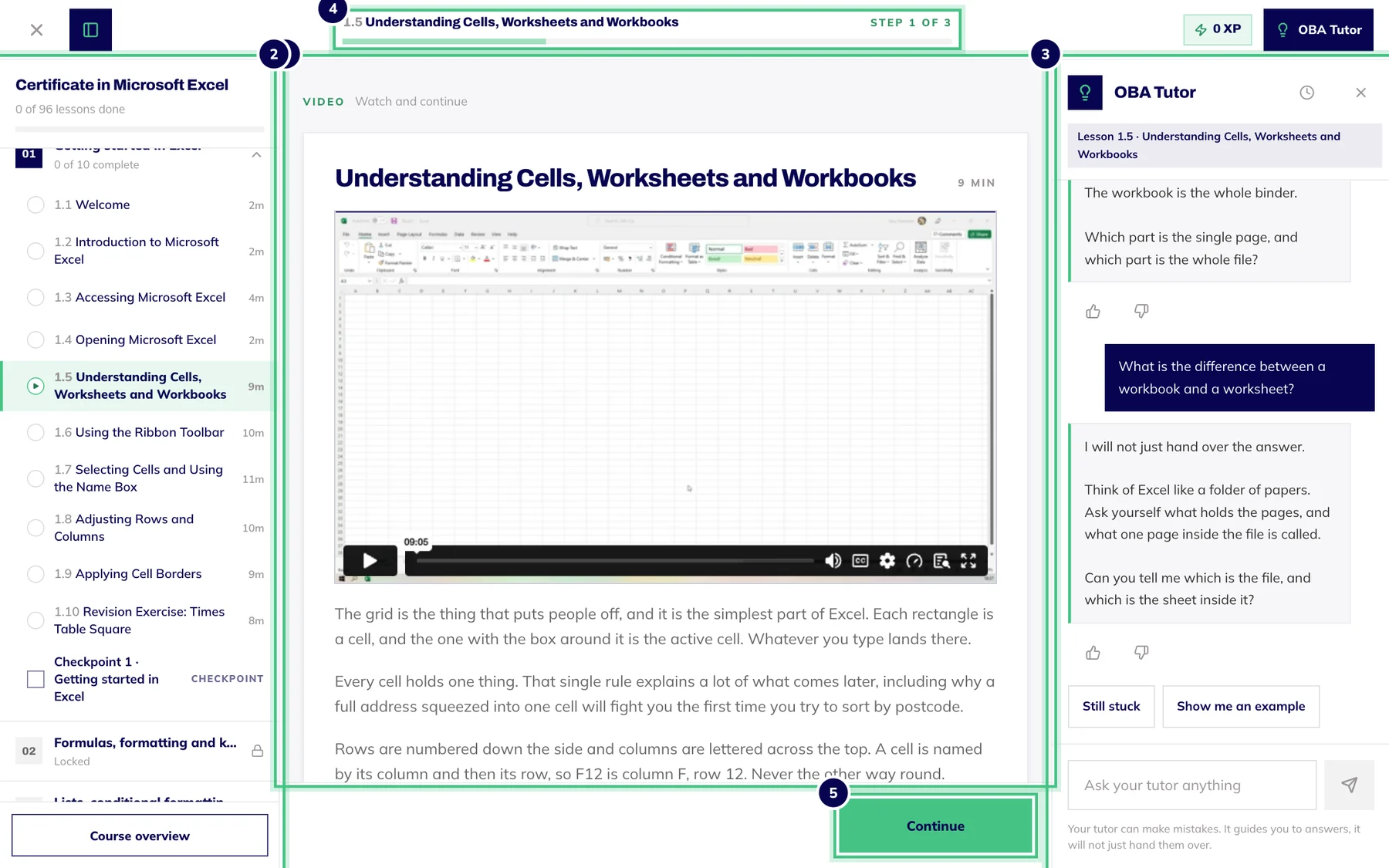
- Number 1: Course contents: every lesson and checkpoint. Hide it with the button at the top left.
- Number 2: The lesson: watch the video, read the notes, then Continue.
- Number 3: The OBA Tutor, which knows the lesson you are on.
- Number 4: Where you are in the lesson, step by step.
- Number 5: Continue moves you to the next step.
Moving through a lesson
Watch the video or read the step.
If there is a question, answer it and press Check.
Press Continue to go to the next step.
On the last step, press Continue to finish. Your summary shows what you earned, with a button to the next lesson.
On a keyboard, Ctrl and Enter (Cmd and Enter on a Mac) presses Check, Continue or Try again for you, whichever is showing.
Showing and hiding the side panels
The button at the top left, beside the cross, opens and closes the course contents. The OBA Tutor button at the top right does the same for the tutor. On a laptop or bigger screen both start open when there's room, and if you close one, the player remembers that on the device you're using.
On a smaller screen the panels slide in over the lesson instead. Learning on your phone or tablet shows how that looks.
Leaving and coming back
The cross at the top left takes you back to your course home. Your place is saved as you go, so next time the lesson opens where you stopped, with a note such as "Welcome back, picking up at step 3 of 5". It is saved to your account, so it works on any device.
A lesson you've already finished opens from the start, so you can go through it again.
Why a module says Locked
Modules open in order. A module marked Locked opens as soon as you've finished every lesson in the module before it. You don't have to pass that module's checkpoint first, though it's a good way to find out whether you're ready.