
Press Enrol now on the course page, then fill in the one-page checkout: your account, your billing address and your payment. Your course opens the moment the payment goes through, and it's yours for life.
Step by step
Open the course or bundle you want and press Enrol now. On a phone, an Enrol now bar also appears at the bottom of the screen once you've scrolled past the price.
Check the order summary (5): it holds just that one course or bundle and the price you'll pay. Have a discount code? Add it here first.
Fill in Your account (1): continue with Google, or type your email. If the email is new to OBA, choose a password of at least 8 characters in the box that appears.
Fill in Billing details (2): start typing your address and pick it from the list, or choose Enter address manually.
Enter your card under Payment (3), or choose Apple Pay, Google Pay or Link if your device offers them.
Press Enrol now (4).
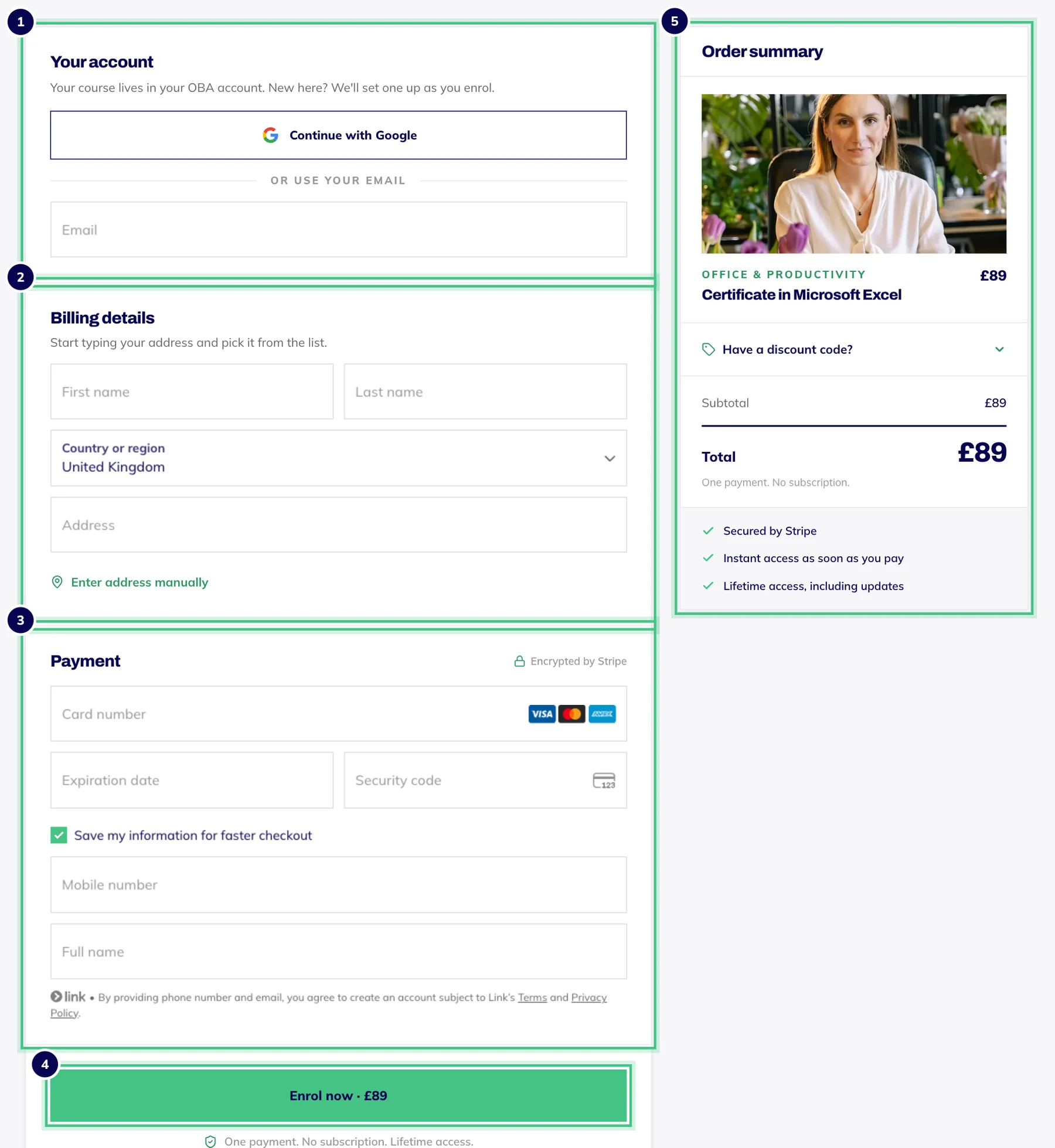
- Number 1: Your account: continue with Google, or type your email.
- Number 2: Billing details: start typing your address, or enter it by hand.
- Number 3: Payment: card, or Apple Pay, Google Pay or Link where your device offers them.
- Number 4: Enrol now pays and opens your course straight away.
- Number 5: The order summary, with the box for a discount code.
Already have an OBA account? Log in first, or log in on the checkout when it asks, so the course goes into the account you already use. Here's how.
What happens when you press Enrol now
Your bank may ask you to approve the payment, in a box over the checkout or in your banking app. You stay on our page throughout.
Once the payment goes through, the confirmation page opens. If you've just made your account, you're already signed in: press Start learning and you're in. Your receipt goes to the email you used at checkout.
The line under the button (2) says your course starts straight away, so the 14-day cancellation period for digital content ends when your access begins. Pressing Enrol now is you asking for that. Instant access and your right to cancel explains what it means.
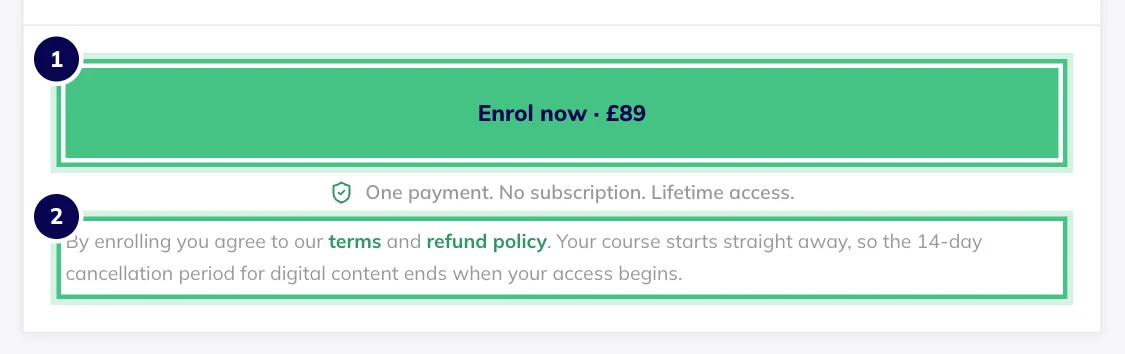
- Number 1: Enrol now pays for the course and opens it.
- Number 2: The statement under the button: by enrolling you ask for access straight away.
If we couldn't finish setting your password, the confirmation page asks you to choose one, and your receipt email has a link to set it too.
One course per order
Checkout holds one course or one bundle at a time. If you start checking out one course and then press Enrol now on another, the new one replaces it, so the total you see is never a surprise.
Want several courses? If a bundle collects them, it gets you all of them in one go, for less than buying them separately. Or buy them one at a time: once you're logged in, checkout skips straight to billing and payment.
Prices are in pounds and you pay once. There's no subscription and nothing renews.