
We email your receipt as soon as your payment goes through, to the address you used at checkout. You can also download a copy any time from Account settings, under Purchases.
Check your inbox
Search your inbox for Your OBA order: that's how the subject line starts, followed by your order number. If it isn't there, check your spam or junk folder.
The email lists what you enrolled on, the total, the card you paid with, and a Start learning button that takes you straight to your course.
Download a copy from your account
Select your initials at the top right of the app and choose Purchases and receipts (3).
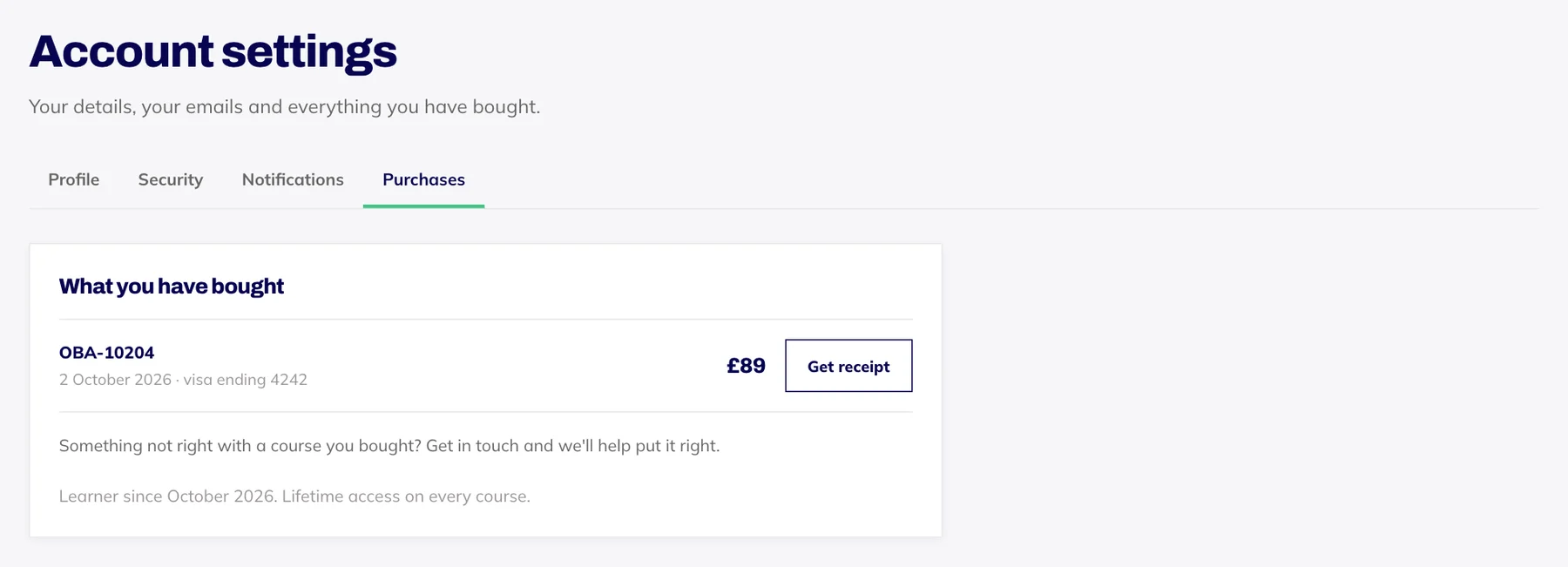
Find the order. Each one shows its order number, the date, the card ending and the total.
Press Get receipt. The receipt downloads as a PDF straight away.
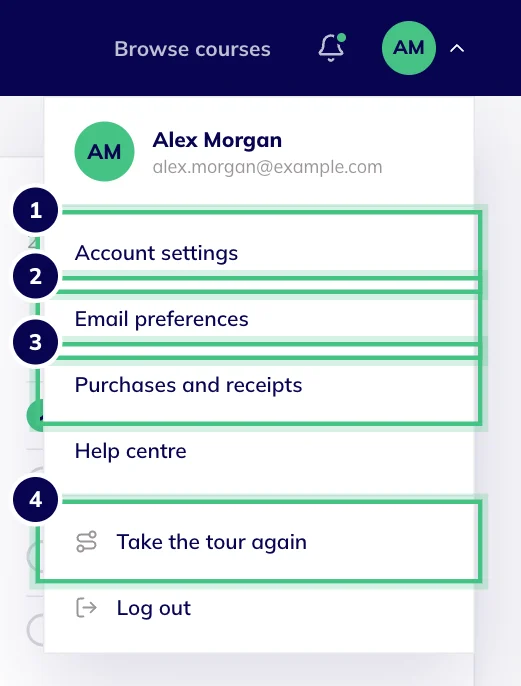
- Number 1: Account settings: your name, email, password and more.
- Number 2: Email preferences.
- Number 3: Purchases, with your receipts.
- Number 4: Take the tour again any time.
What the receipt shows
Each order is for one product, so each receipt covers one course or one bundle. A bundle is a single line, and any discount appears as its own line under the subtotal.
It shows the date you paid, the amount, the last four digits of your card and the email address you enrolled with. It's a payment receipt, not a VAT invoice, and it says so at the bottom.
If you need something else
Your employer needs more, such as a VAT invoice or their company name on the paperwork? Email support@oba.uk with the order number and what they need, and we'll tell you what we can provide.
Didn't get to choose a password at checkout? Your receipt email has a Set your password link. If it has expired, use Forgotten your password? with the email you enrolled with, then come back to Purchases.
Still can't find the email? Email support@oba.uk with the address you used and roughly when you paid, and we'll send you a copy. We reply within 1 working day.