
Your name and the name on your certificates are on the Profile tab in Account settings. A new password is set with a reset link, and to change your email address, email us.
Change your name
Select your initials at the top right of the app and choose Account settings.
On the Profile tab (1), change your first name, last name or the name on your certificates (2).
Press Save changes at the bottom of the form.
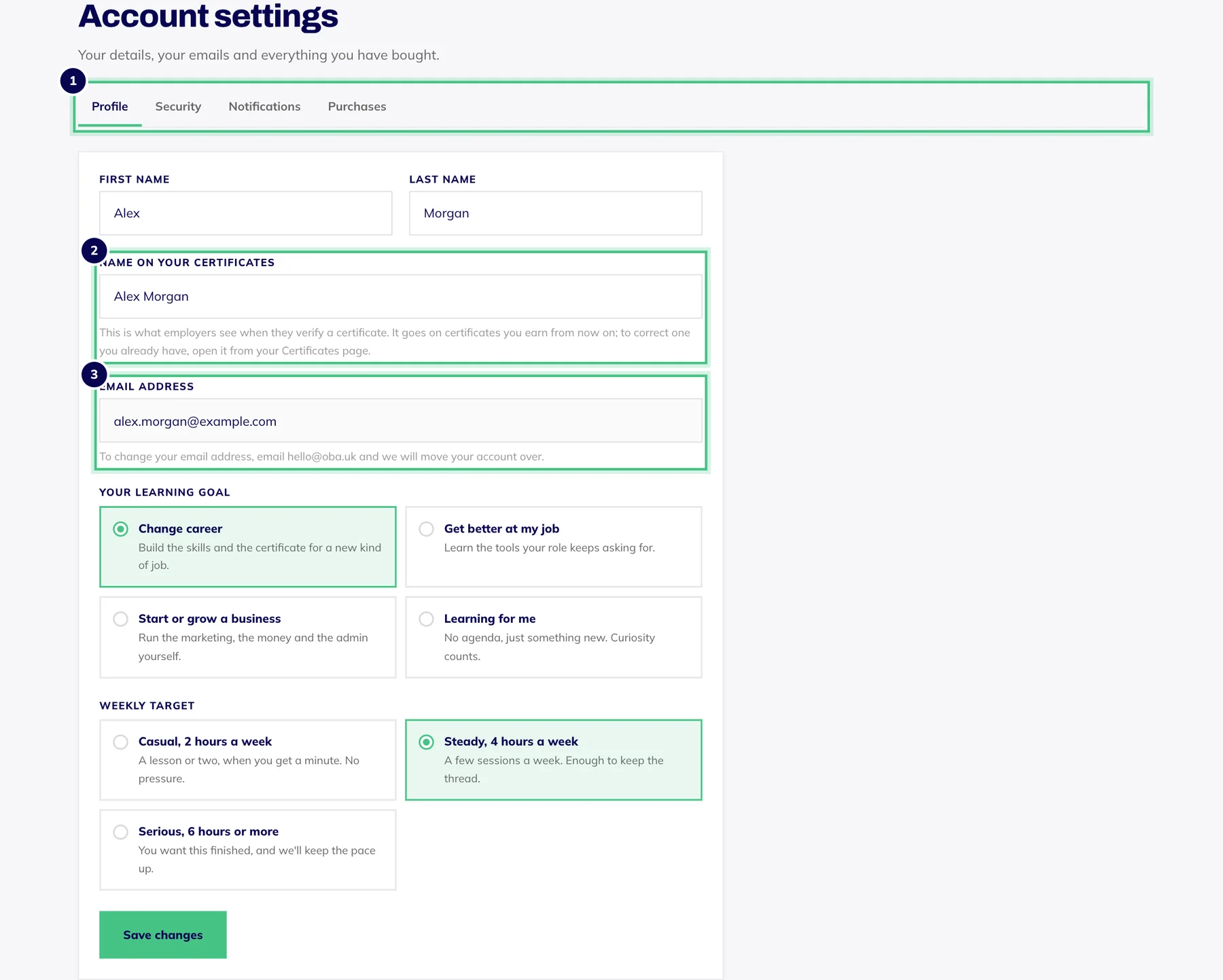
- Number 1: The four tabs: Profile, Security, Notifications and Purchases.
- Number 2: Name on your certificates: exactly as it should print.
- Number 3: Your email address. To change it, email hello@oba.uk.
The name on your certificates is what employers see when they verify one, so write it exactly as it should print. Changing the name on your certificate covers one you've already earned.
Change your email address
Your email address can't be edited from your account settings. Email hello@oba.uk from the address on your account, tell us the new one, and we'll take it from there.
Keep it an address you check: your receipts, certificates and password reset links all go there.
Change your password
You can change it from your account settings while you're logged in, without typing the old one.
Select your initials at the top right and choose Account settings.
Open the Security tab and press Update password.
Type your new password, at least 8 characters, and press Save and continue. You stay logged in and land back in your settings.
Signed up with Google? Your password belongs to your Google account, so change it with Google.