
Every lesson, every checkpoint and the OBA Tutor work on a phone or tablet, in your usual browser. On a phone the lesson fills the screen, with buttons at the top to open the course contents and the OBA Tutor.
The lesson player on a phone
The bar along the top fills as you work through the lesson, the number beside the lightning bolt is your XP, and the cross at the top left takes you back to your course home.
The contents button (1) slides the course contents in from the left. Tap a lesson to go to it.
The lightbulb (2) slides the OBA Tutor in from the right.
Continue (3) sits at the bottom of the screen, within easy reach of your thumb.
To put a panel away, tap the close button in its top corner.
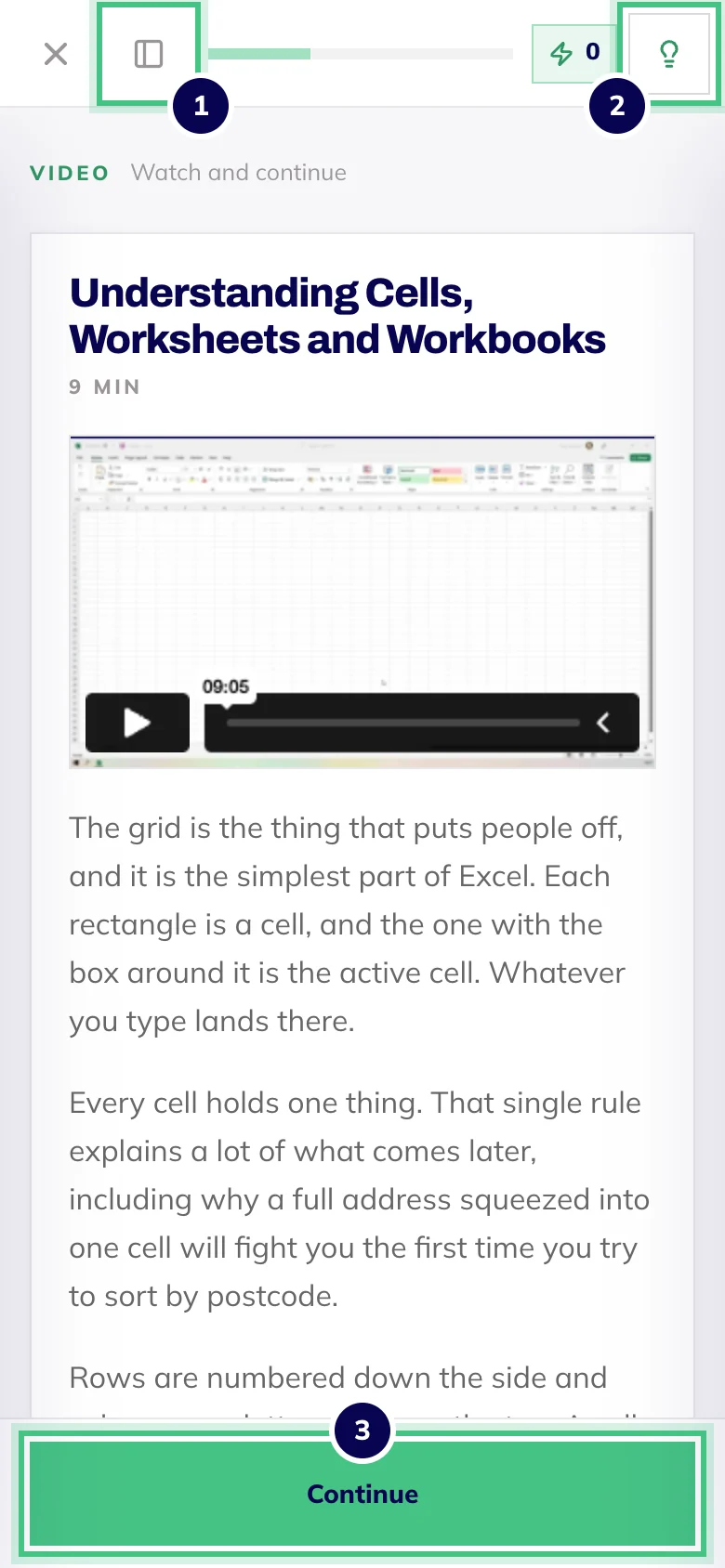
- Number 1: Course contents.
- Number 2: The OBA Tutor.
- Number 3: Continue to the next step.
Questions made for touch
Nothing needs dragging. Matching pairs work by tapping a definition, then the row it belongs to. Sorting works by picking a bucket, then tapping the items that belong in it, and tapping an item again takes it back out. Flashcards flip with a tap.
Watching on a small screen
Tap the full screen button in the video player and turn your phone sideways for the biggest picture. Videos stream as you watch, so a long one on mobile data can use a fair bit of your allowance. Wi-Fi is kinder.
Tablets
A tablet works the same way. On a larger tablet held sideways, the course contents can sit beside the lesson instead of sliding over it, and on the widest screens the OBA Tutor gets its own column too.
Switching between devices
There's no app to download: log in through your browser and your courses are all there. Your progress is saved to your account, so you can watch a lesson on the bus and pick up where you left off on your laptop. It's a good way to split things, because the software you're learning usually works best on a computer.