
Press Continue with Google on the login page or at checkout, choose your Google account, and you're in. There's no separate OBA password to remember.
Logging in with Google
Go to the login page and press Continue with Google (1).
Choose your Google account and confirm on the Google screen.
You come straight back to OBA, signed in. If it's your first time, you'll see three quick questions and an offer of a one-minute tour.

- Number 1: Continue with Google, if you signed up with Google.
- Number 2: Or your email and password.
- Number 3: Forgotten your password? Start a reset here.
Pick the Google account with the email address you bought your course with, so you land in the account that holds it.
At checkout
You can enrol with Google too. Press Continue with Google at the top of the checkout (1) and you'll come back to the checkout signed in, ready to pay. If you're new to OBA, that sets up your account at the same time.
If you type an email address that signs in with Google, the checkout says so and offers the same button, so the course goes into the account you already have.
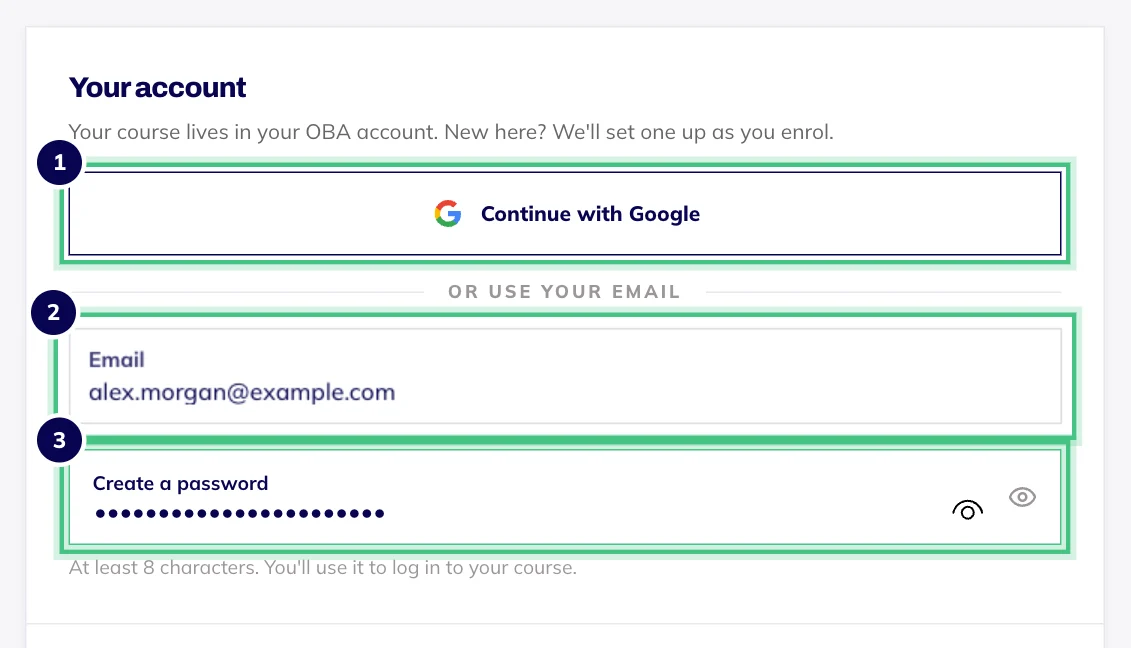
- Number 1: Continue with Google instead of typing anything.
- Number 2: Your email address.
- Number 3: New to OBA? Choose a password here and your account is ready the moment you pay.
What we get from Google
Your name and email address, which is what we need to set up and run your account. We never see your Google password. Our privacy policy has the detail.
Your Google account is now the key to your courses, so it's worth turning on 2-Step Verification with Google. Keeping your account secure has more.
If it doesn't work
We couldn't finish signing you in: press Continue with Google again and complete the Google screen.
Google sign-in is unavailable right now: log in with your email and password if you have one, or try again a little later.
At checkout, Google sign-in didn't complete: try again, or carry on with your email address instead.
Still stuck? Email hello@oba.uk or call 0800 060 8823 (Mon to Fri, 9am to 5pm UK time).