
An up-to-date version of Chrome, Edge, Firefox or Safari, on a computer, tablet or phone. OBA runs in your browser, so there's nothing to install.
Browsers
Any recent version of Chrome, Edge, Firefox or Safari works well. Keep it up to date: the site uses modern web features, and a browser that hasn't been updated for a couple of years can show pages oddly. Most browsers update themselves, so restarting yours is often all it takes.
Leave JavaScript and cookies switched on for oba.uk. The lessons need JavaScript to run, and logging in and checkout need cookies. Cookies and your privacy settings explains which ones we use.
Computers, tablets and phones
Lessons, checkpoints and the OBA Tutor all work on every size of screen. On a laptop or desktop the course contents and the OBA Tutor sit beside the lesson; on a phone the lesson fills the screen and the panels slide in when you need them. See Learning on your phone or tablet.
The software you're learning is a different matter. Excel, Photoshop and most of the tools we teach work best on a computer, so plenty of people watch on their phone and practise on a laptop. Building a spreadsheet on a phone is possible. It's just character-building.
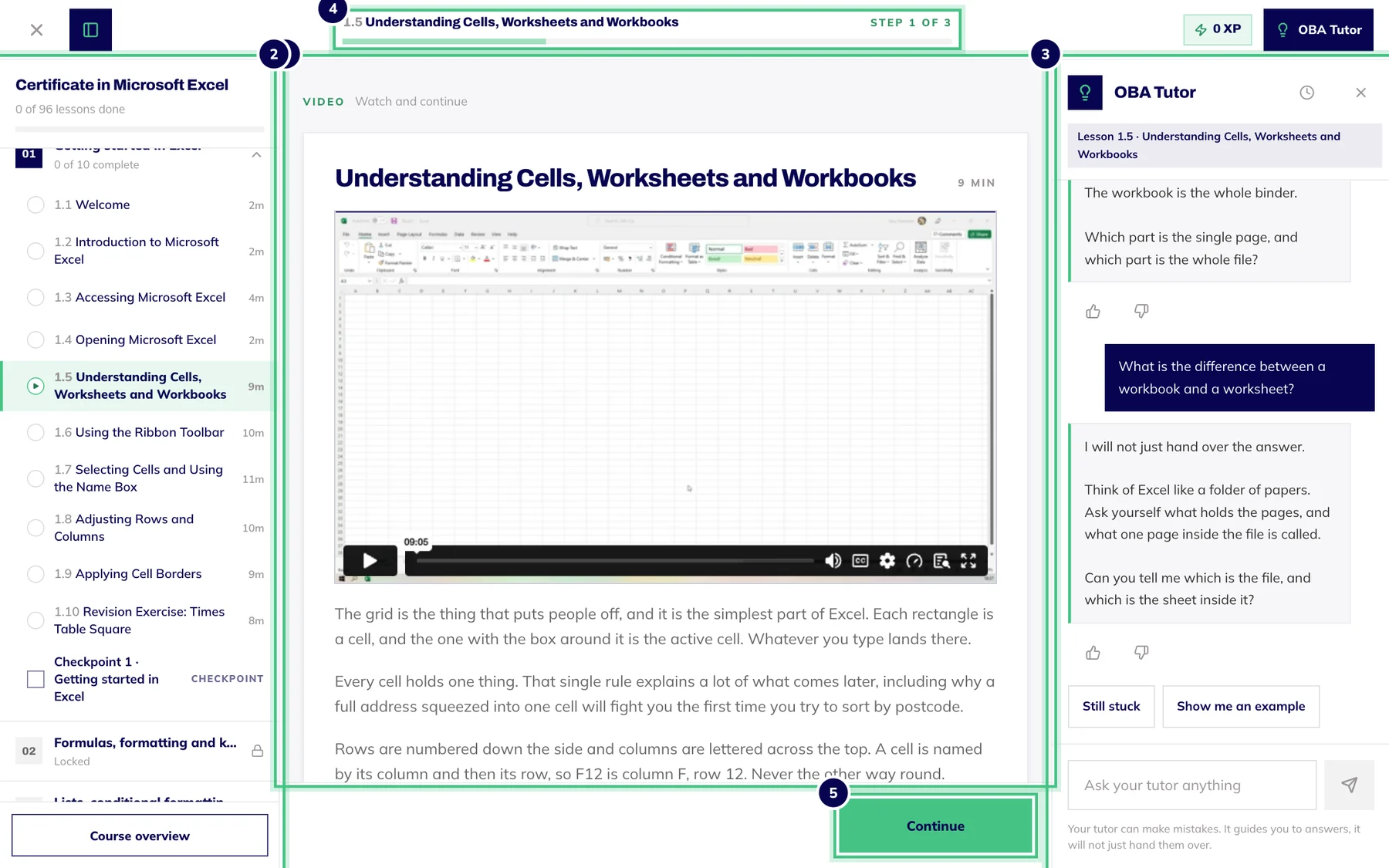
- Number 1: Course contents: every lesson and checkpoint. Hide it with the button at the top left.
- Number 2: The lesson: watch the video, read the notes, then Continue.
- Number 3: The OBA Tutor, which knows the lesson you are on.
- Number 4: Where you are in the lesson, step by step.
- Number 5: Continue moves you to the next step.
Switching between devices
Your progress is saved to your account, not to the device, so you can start a lesson on your laptop and finish it on your phone. The one thing each device remembers for itself is whether you closed the contents or the OBA Tutor panel.
If something misbehaves
Most problems clear with one of these, in this order:
Refresh the page.
Update your browser, then restart it.
Try a private window or a different browser. If that fixes it, an extension such as an ad blocker is the likely cause.
Still stuck? Email support@oba.uk with what you were doing, what you expected and what happened instead, plus your device and browser. A screenshot helps a lot.
A video that won't play has its own checklist: A video or lesson won't load.