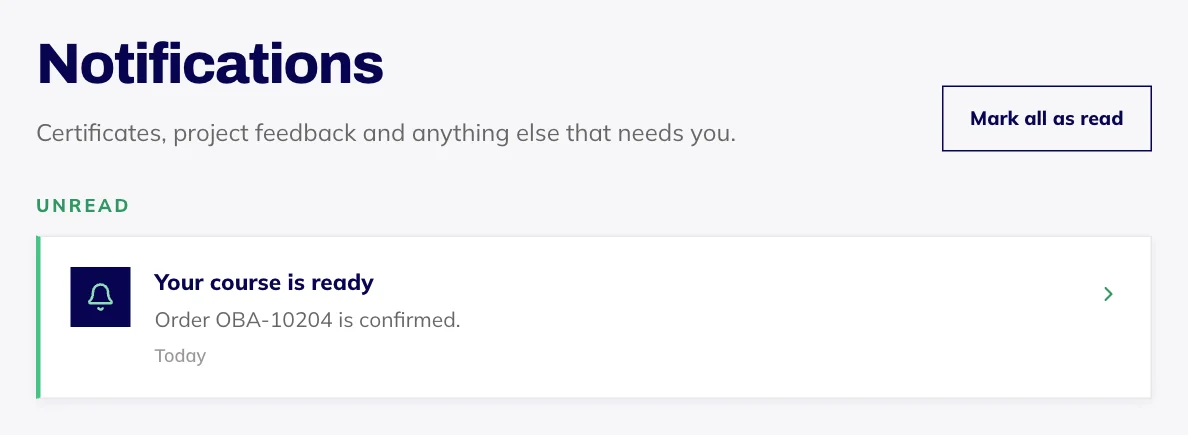
Switch emails on or off on the Notifications tab in Account settings. Receipts, certificates and account emails always arrive, because they're about your account. Notices inside the app sit behind the bell at the top.
Choose which emails you get
Select your initials at the top right of the app and choose Account settings.
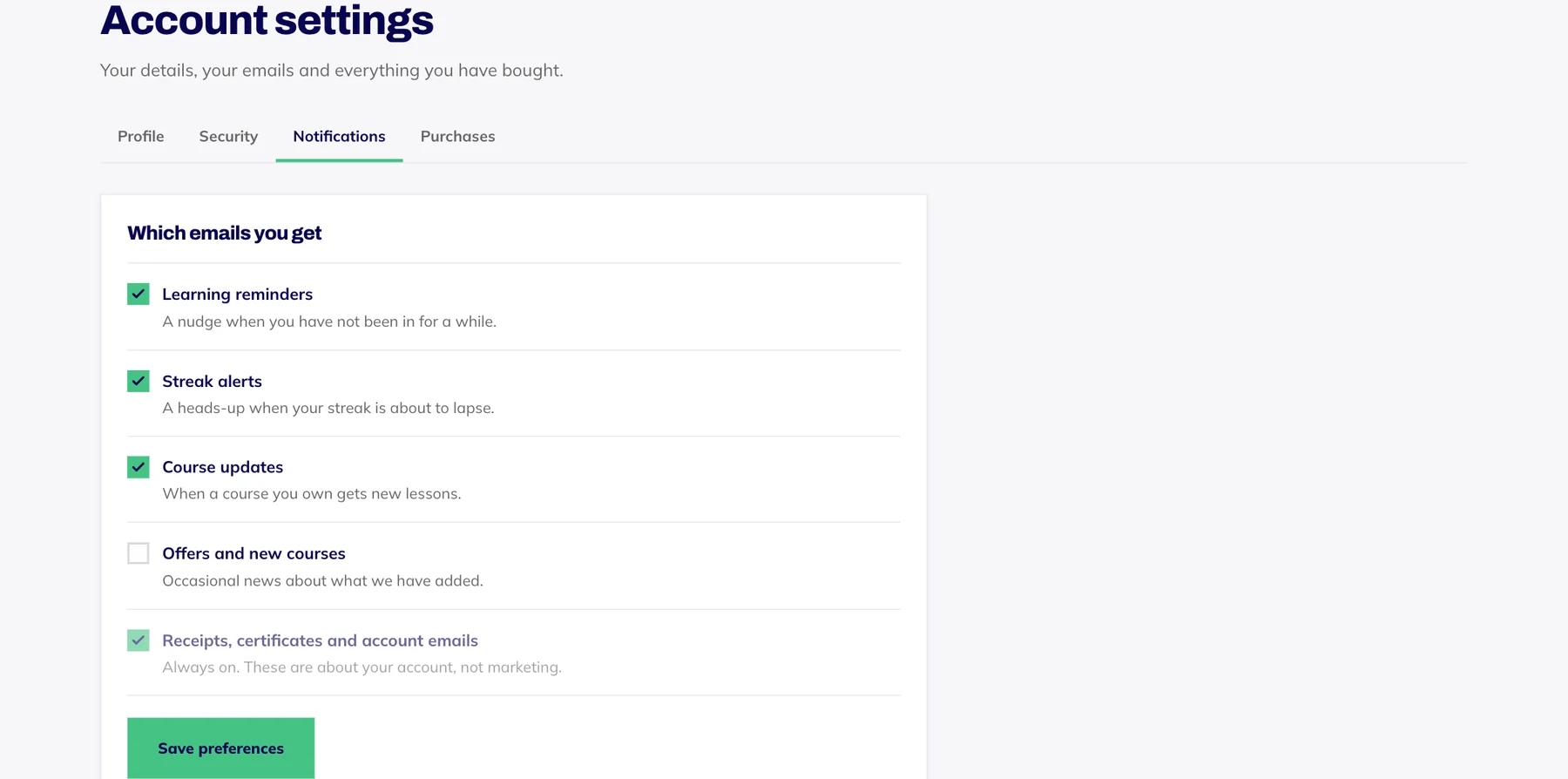
Open the Notifications tab.
Tick the emails you want and untick the ones you don't: learning reminders, streak alerts, course updates, and offers and new courses.
Press Save preferences.
Emails you can't switch off
Receipts, certificates and account emails, such as password reset links, always arrive. They're about your account rather than marketing, so there's no switch for them.
Without logging in
Emails that aren't about your account, like the info pack email, end with a Choose which emails you get link. It opens the same switches for that address with no login needed, and changes take effect straight away. Unsubscribe from all marketing emails turns every optional email off in one go.
The link stops working after 90 days. If an old one says it isn't valid, use the link in a more recent email, or log in and use the Notifications tab instead.
Notifications in the app
The bell at the top of the app shows a mint dot when something new needs you: your course is ready, a certificate has been issued, or there is feedback on a project. Select the bell to see them all.
Select a notification to open it, which also marks it as read. Mark all as read clears the lot. Notifications aren't emails, so the email switches don't affect them.