
Open your Certificates page and press Download PDF to save it. To share it, send the link to its public page, where anyone can see it's genuine without logging in.
Download the PDF
It's an A4 PDF, ready to print or attach to an application. View certificate (2) opens your own copy of the certificate, with the same download and a link to its public page.
Open Certificates from the menu at the top of your account.
Find the course under Earned.
Press Download PDF (1) to save the file.

- Number 1: Download PDF saves your certificate to print or attach.
- Number 2: View certificate opens its own page, with the PDF, the name on it and the public link to share.
- Number 3: Your credential ID: employers type this into the verify page.
No Download PDF button? Email hello@oba.uk and we'll sort the file out. Your certificate is still valid, and employers can still verify it.
What's on it
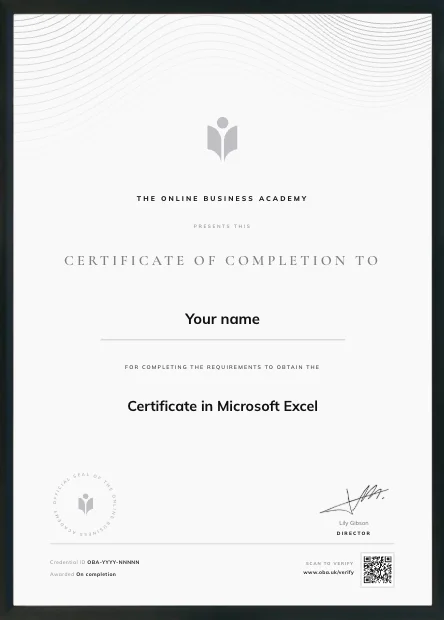
Your name, the course, the date it was awarded, your credential ID, our director's signature and a QR code. Scanning the code opens the certificate's public page, and the address of our verify page is printed beside it, so even a printed copy can be checked.
Share the public page
On LinkedIn, add it to the certifications section of your profile, with The Online Business Academy as the issuer, your credential ID, and the public page link as the credential URL. There's no one-click LinkedIn button, so it's a quick copy and paste.
On your CV, the course name, the credential ID and the link are all an employer needs. The resume builder adds your certificates for you, credential ID included.
On your Certificates page, press View certificate.
Press See the public page.
Copy the address from your browser's address bar and paste it wherever you want to share it.
The public page shows your name, the course and the date to anyone with the link, and nothing else about you. Once you post the link somewhere public, search engines can find it too.