
There are two ways, both free, and neither needs an account: open the certificate's public page from the link you shared or the QR code on the PDF, or type its credential ID into our [verify page](/verify).
Check by credential ID
Every certificate has its own credential ID: OBA, the year, then five digits. It is printed on the certificate and shown on its public page.
Go to the verify page at www.oba.uk/verify.
Type the credential ID into the box (1).
Press Verify (2).
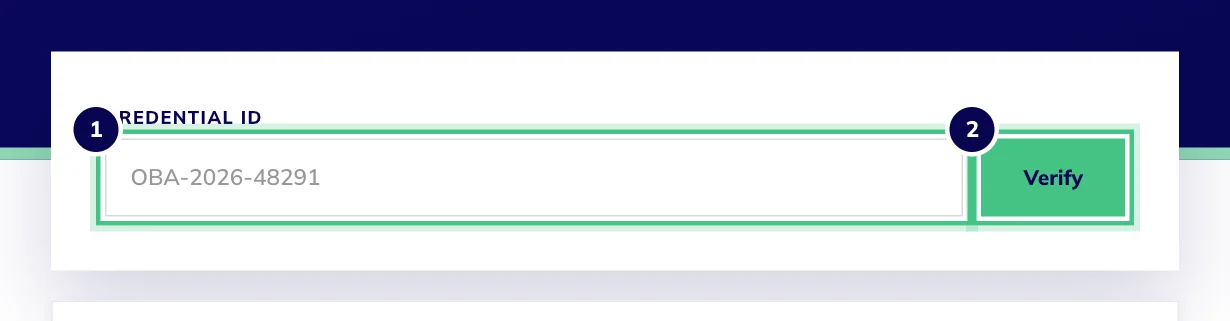
- Number 1: Type the credential ID printed on the certificate.
- Number 2: Verify shows the holder, the course and the completion date.
Check from a link or the QR code
The link you share and the QR code on the PDF both open the certificate's public page. The Verified certificate panel at the top (1) is checked against our records every time the page loads, so it is always current.
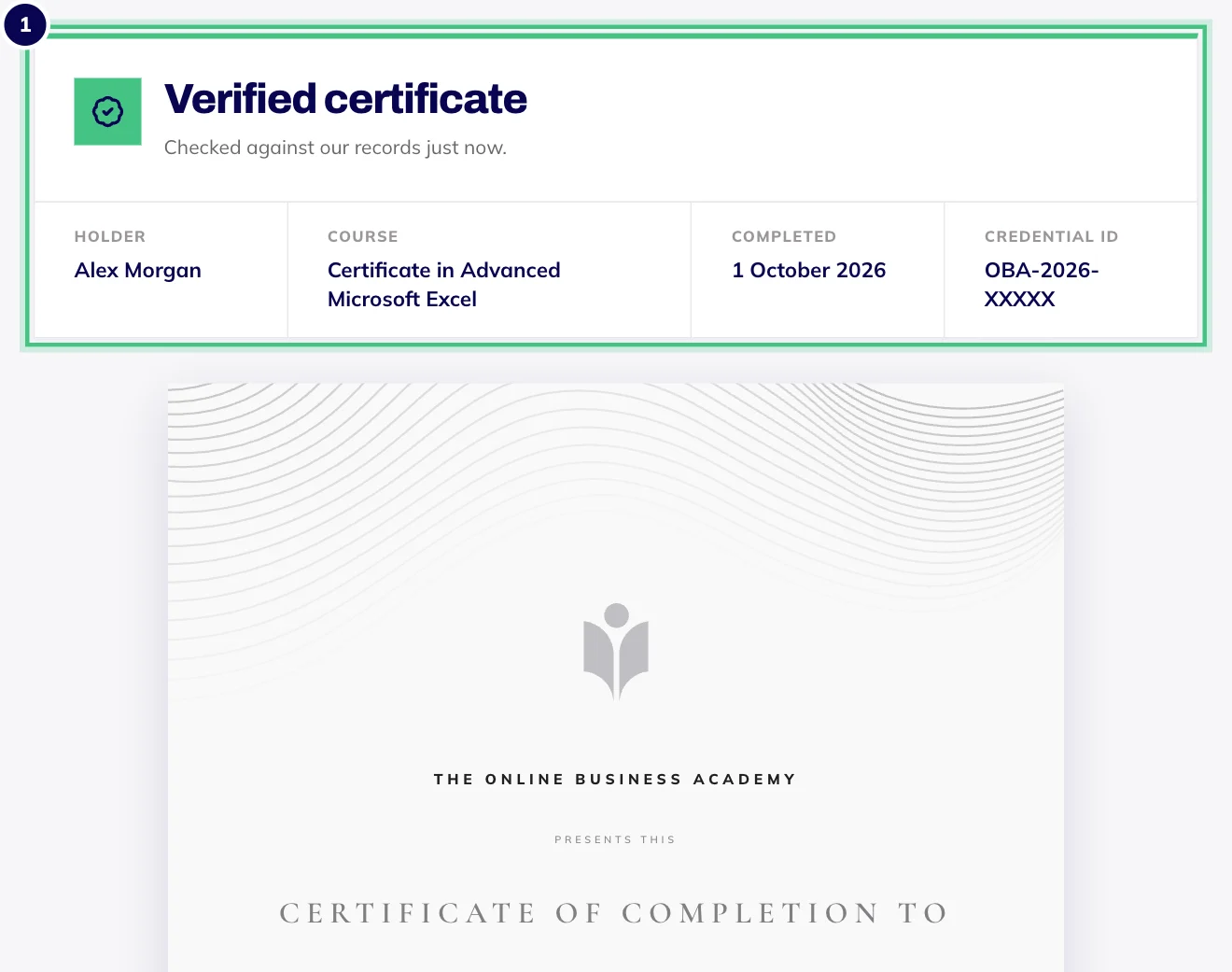
- Number 1: Anyone with the link sees this panel, checked against our records.
What employers see, and what they don't
Four facts: your name as it appears on the certificate, the course, the completion date and the credential ID, along with whether the certificate is still valid. Not your score, your email address or anything else about you. That's by design.
If no certificate matches an ID, check for typos first, especially the year and the last five digits. Still nothing? Employers can email support@oba.uk with the ID and we'll check by hand. We reply within one working day.
Your certificates stay verifiable for as long as you keep your account. Deleting your account deletes them too, including the credential IDs employers use to check them. [More on deleting your account](/help/download-or-delete-your-data).